How To Run Windows Games On Mac
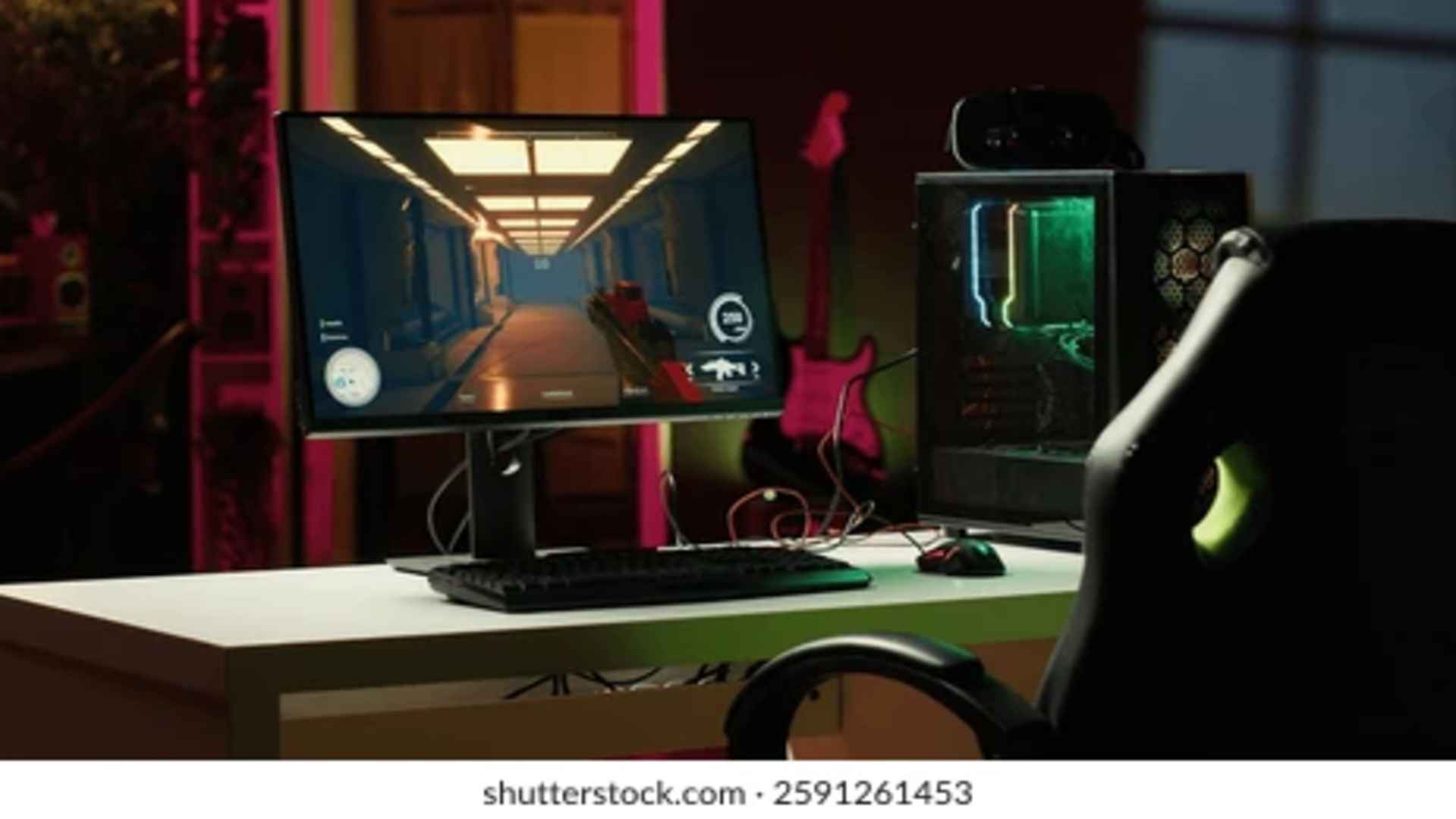
For years, Mac users faced severe limitations when trying to enjoy popular PC titles natively on macOS. The introduction of Apple Silicon has dramatically shifted the computing landscape, providing powerful hardware capable of handling demanding graphical environments. Understanding the available translation systems and virtualization methods can open up a vast universe of modern PC gaming right on your desktop hardware.
The Power of Modern Translation Layers
Translation layers work by converting Windows system instructions directly into commands that macOS can natively execute in real time. Unlike heavy virtualization methods, this technical solution operates without running a complete secondary operating system in the background. Players often choose this route because it preserves system memory and maximizes frame rates during intense gaming sessions.
A notable option in this space relies on highly customized setups built upon open-source software architectures. Intrepid players frequently research how to run Windows applications using specialized tools that bypass complex configuration hurdles entirely. This method dramatically lowers the entry barrier for everyday gamers who want to dive into their existing PC libraries without dual-booting.
Leveraging Developer Conversion Toolkits
Apple has actively embraced the gaming community by releasing proprietary translation suites designed to assist software developers with porting projects. These tools allow enthusiasts to run DirectX 12 games on modern machines with surprising efficiency. The underlying software interprets graphic shading instructions fluidly, bridging the massive compatibility gap that previously locked out massive blockbuster franchises.
While originally intended for testing purposes, the broader tech community quickly adopted these toolkits for everyday recreational use. Installing these environments requires a bit of familiarity with terminal commands and system configurations. However, the performance return makes it a premier choice for testing the limits of modern Apple hardware.
Utilizing Full Environment Virtualization
Virtualization software creates an entire isolated digital computer inside your Mac, complete with its own virtual processor allocation and storage systems. This architecture allows you to run a full version of the Windows desktop directly alongside standard macOS productivity programs. It provides absolute compatibility with launcher clients and protective anti-cheat systems that fail under standard translation layers.
The primary downside of this approach stems from the severe resource split required to operate two platforms simultaneously. You will need a machine equipped with ample shared memory to ensure that both systems remain responsive during heavy rendering. For complex strategy titles and management simulators, this approach delivers an incredibly reliable and stable environment.
Optimizing Performance for Smooth Playability
Getting a game to launch is only half the battle when configuring cross-platform performance settings. Players must carefully adjust internal display resolutions and scaling tools to match the unique architecture of their displays. Utilizing built-in upscaling technologies like FidelityFX or MetalFX can dramatically increase fluid movement without putting extra strain on thermal cooling systems.
Additionally, closing down unnecessary background applications within macOS frees up crucial computing threads for the active translation environment. Ensuring your controllers are synced natively via Bluetooth before launching your translation environment also minimizes complex input device mapping errors. With the proper adjustments, your favorite computer can double as an exceptionally capable gaming setup.